 Quad
Quad
How to watch YouTube TV multiview on a computer
Short answer: YouTube TV's built-in multiview doesn't work on tv.youtube.com in a web browser. It's only on TVs, streaming devices and the mobile apps. On a computer you can either open a few YouTube TV windows and arrange them yourself, or use a Chrome extension that puts up to four channels in one grid. I made one of those (Quad), so take my opinion with that in mind. Both options are below.
Where YouTube TV's own multiview works
Since April 2026, YouTube TV lets you build your own multiview from up to four live channels. It's rolled out to most TVs, streaming devices and phones. Recordings and on-demand shows can't go in a multiview, and some older devices get a more limited version built around big events.
None of that applies to the website. Open tv.youtube.com in Chrome, Safari or Edge and there's no multiview button. One channel per tab.
Option 1: arrange windows by hand
This works in any browser and doesn't need anything installed.
- Open tv.youtube.com and start the first channel.
- Open a new window (Ctrl+N on Windows, Cmd+N on Mac), go to tv.youtube.com again and start the second channel. Repeat for each one you want.
- Snap the windows into corners. On Windows, press Win+Left or Win+Right, then Win+Up or Win+Down. On a Mac with macOS Sequoia or later, drag each window into a corner of the screen.
- Turn the volume down in every player except the one you want to hear.
It's free and it works. The annoying parts: every window has its own title bar and border, switching the sound means turning one player down and another up, and Chrome's "Mute site" option mutes every YouTube TV tab at once, so it doesn't help here. You also redo the whole setup every time.
Option 2: use a Chrome extension (Quad)
This is the reason I built Quad. It handles the arranging and the sound for you.
- Add Quad from the Chrome Web Store. It's free.
- Click the Quad icon and choose Open fullscreen.
- Pick a channel in each player.
- Press 1–4, or click Listen, to choose which one you hear.
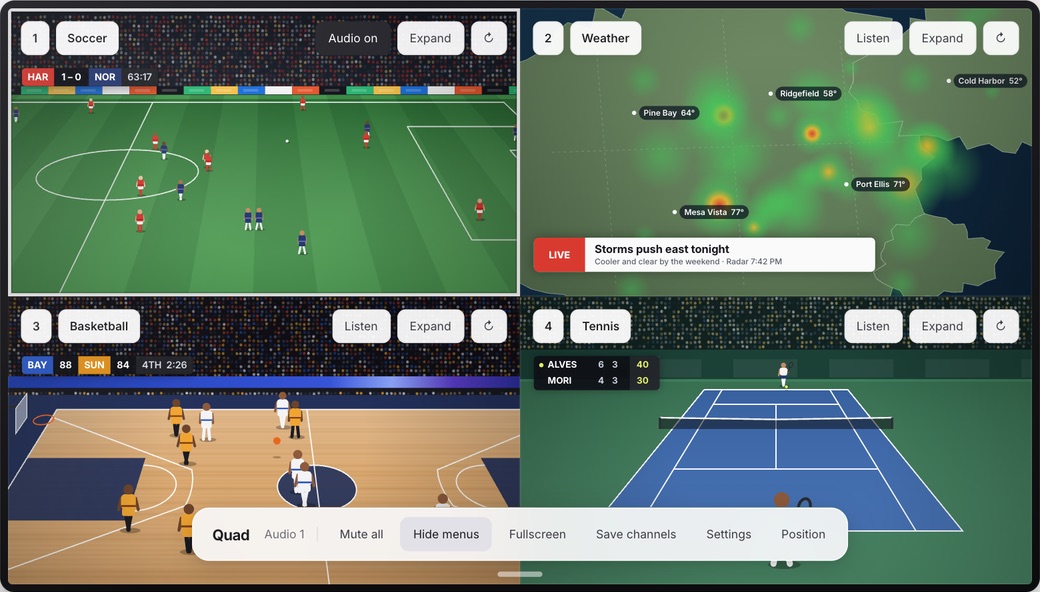
The grid has no gaps or title bars, switching sound is one key, and Quad remembers your lineup for next time. It only works in desktop Chrome 110 or newer, and you still need a YouTube TV subscription. More on the Quad homepage.
Which one should you use?
| Option | Works on | Switching sound | Setup each time |
|---|---|---|---|
| YouTube TV multiview | TVs, streaming devices, phones | Built in | Pick channels |
| Windows by hand | Any browser | Adjust volume in two players | Open, arrange and mute every window |
| Quad | Desktop Chrome | One key or click | One click, lineup is saved |
If you're on the couch, use the TV. If you're at a computer and you do this once in a while, doing it by hand is fine. If you do it every weekend, the extension saves you the fiddling.
Things that apply no matter how you do it
- Every player is a separate stream, so YouTube TV's limit on simultaneous streams still applies.
- Players aren't synced. One game might be a few seconds ahead of another.
- Four streams use about four times the bandwidth of one, and a lot more CPU. Older laptops may do better with two or three.
- You only get the channels in your plan. Blackouts and ads work the same as usual.
Updated · by Henry